
Quick Answer
You can check your Lifeline application status online through the National Verifier portal, through your service provider’s website or customer support, or by contacting the Lifeline Support Center. Have your Application ID, date of birth, and the last four digits of your Social Security number (or the Tribal ID you used) ready to see whether your application is in progress, needs documents, approved, or denied.
Where to Check Your Lifeline Status
You can track your status in three reliable ways. First, use the National Verifier online portal managed by the Universal Service Administrative Company (USAC). Second, check with the service provider you applied through (such as Assurance Wireless, SafeLink, Q Link, TruConnect, or a local carrier), which may offer an online status page or can confirm details over chat or phone. Third, contact the Lifeline Support Center by phone or email if you applied by mail, can’t access your account, or need help resolving an issue.
- National Verifier portal: checklifeline.org/lifeline (or start at lifelinesupport.org)
- Your provider’s portal or customer support (look for “Check Application Status,” “Enrollment Status,” or “My Application”)
- Lifeline Support Center: 800-234-9473 or LifelineSupport@usac.org
What You’ll Need Before You Check
Have these details ready to verify your identity and pull up your record quickly:
- Application ID (from your confirmation screen, email, text, or paper form)
- Date of birth (MM/DD/YYYY)
- Last four digits of your SSN, or the identification number you used (for example, a Tribal ID)
- The email address or phone number used on your application
If you submitted documents, keep digital copies handy in case you need to reupload eligibility, identity, or address proofs.
Step-by-Step: Check Online via the National Verifier
For most applicants, the National Verifier is the fastest and most reliable way to check status.
- Go to checklifeline.org/lifeline (or start at lifelinesupport.org and follow the prompts to the consumer portal).
- Select “Continue” or “Sign In” and enter the information that matches your application (name, date of birth, last four SSN or Tribal ID, and state). Use the same spelling, punctuation, and address format you used when applying.
- Open “My Applications” to view your current submission and status. If you see multiple entries, check the most recent one.
- If you see “Pending Documents” or “Action Needed,” select “Upload” and submit clear, legible images of the requested items (front and back if applicable). Confirm submission and note any confirmation number.
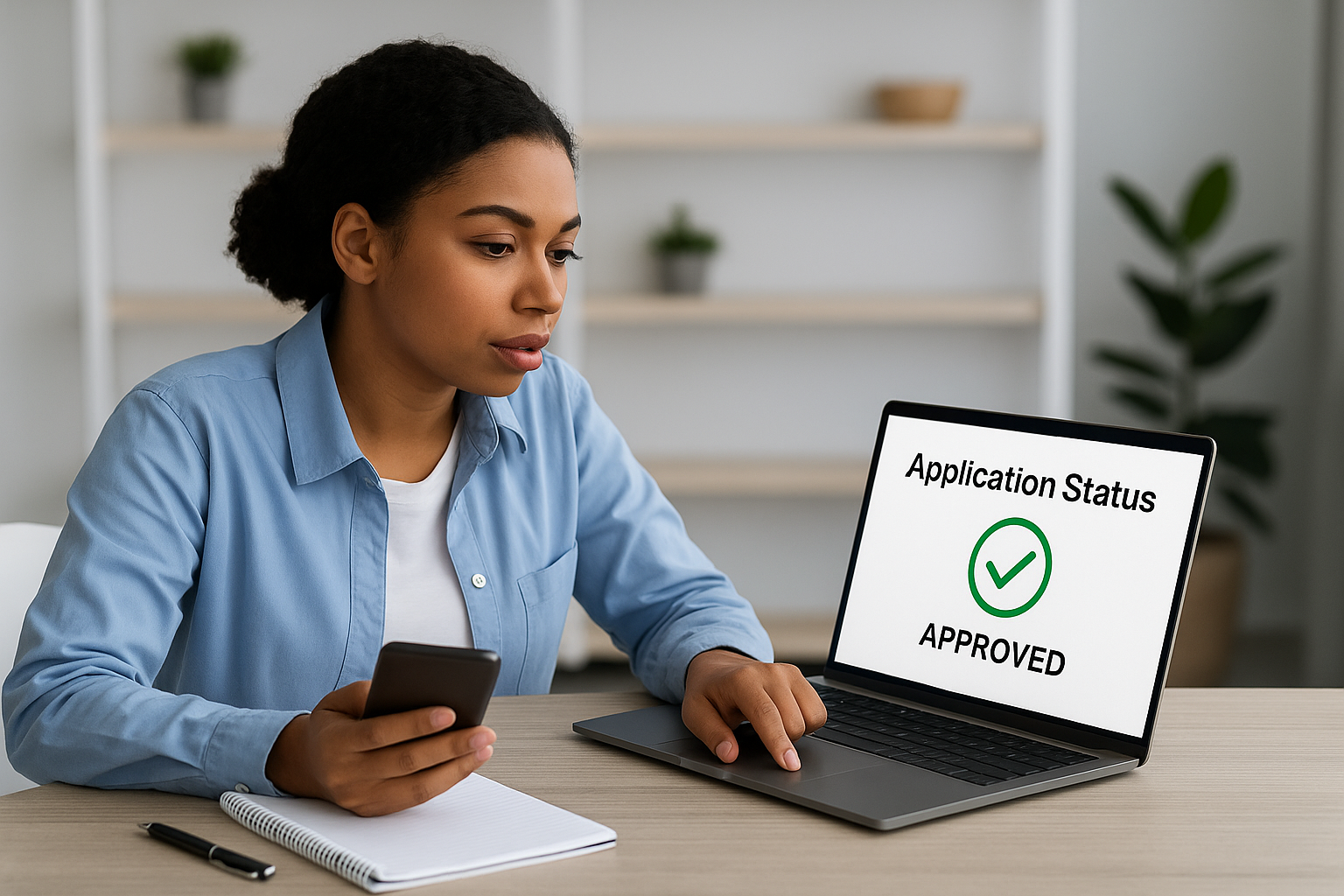
- If approved, you’ll see an approval message and the approval expiration date. You typically have up to 90 days to choose a provider and complete enrollment before approval expires.
Forgot your Application ID? Use the portal’s account recovery options or check your confirmation email/text. If you applied by mail and don’t have access to email, call the Lifeline Support Center for help.
Check Through Your Service Provider
If you applied directly with a participating carrier, they may provide your status on their site, in an app, or via chat or phone. This is useful if your National Verifier eligibility is approved but you’re waiting for the provider to activate service or ship a device.
Typical steps with a provider
- Visit your carrier’s Lifeline enrollment page and look for “Check Status,” “My Application,” or a similar link. Some carriers verify using the email or phone number you used when applying.
- If no online tool is available, contact support by phone or chat. Provide your full name, Application ID, and date of birth.
- Ask whether they see your National Verifier result, whether they need any additional documents, and when to expect activation or device shipment if approved.
If the provider can’t locate your National Verifier approval, ask them to search by Application ID and confirm your information exactly matches what’s in the National Verifier, including address formatting and any middle names or suffixes.
Check by Phone or Email
Use the Lifeline Support Center if you applied by mail, can’t access the portal, or keep seeing an error.
- Call 800-234-9473 and follow the prompts to speak with an agent.
- Email LifelineSupport@usac.org with your full name, Application ID, date of birth, and a brief description of the issue. Do not email full SSNs or sensitive document images unless the support team requests them using a secure method.
Support staff can confirm whether your application is pending, approved, or denied; explain what documents (if any) are still needed; and help resolve duplicate or database mismatch issues.
Understanding Status Messages and Next Steps
| Status shown | What it means | What to do next |
|---|---|---|
| In Progress / Under Review | Your application was received and is being checked automatically or manually. | Wait 1–5 business days. If it takes longer than a week, contact support to confirm no documents are missing. |
| Pending Documents / Action Needed | The system couldn’t verify identity, address, or eligibility using databases. | Upload clear copies of the requested documents. Use the exact same name and address across all materials. |
| Approved | Your eligibility is confirmed in the National Verifier. | Contact a participating provider and complete enrollment within your approval window (typically 90 days), or your approval may expire. |
| Denied | Your application didn’t meet eligibility rules or documents didn’t verify. | Review the denial reason. If fixable (for example, document quality), reapply with corrected info. You may appeal if you believe the decision is incorrect. |
| Duplicate Subscriber | The system shows another Lifeline subscriber at your address or using your identity. | Submit a one-per-household worksheet or contact support to resolve duplicates. Only one Lifeline benefit is allowed per household. |
| Expired / Withdrawn | Your approval window or application period lapsed without enrollment or needed actions. | Start a new application with current information and documents. |
How Long Reviews Usually Take
Well-matched online applications can be approved instantly or within a day. If the system can’t verify your identity, address, or eligibility automatically, expect an additional 3–7 business days after you submit documents. Mailed applications take longer due to shipping and manual entry. If your case is flagged as a duplicate or needs a special review, resolution can take one to three weeks.
After National Verifier approval, provider enrollment can be same-day if you visit a retail location or complete online activation quickly. If a SIM card or device needs to ship, allow 3–10 business days depending on the carrier and your location.
If Your Application Is Stuck or Denied
Most delays and denials are caused by mismatched information or incomplete documents. Use these fixes to clear common hurdles:
Fix identity mismatches
- Ensure your legal name, date of birth, and last four SSN match your ID exactly. Include any hyphens, suffixes, or middle names that appear on your documents.
- Upload a clear, unexpired government-issued photo ID showing your full name and date of birth.
Resolve address issues
- Enter a USPS-standardized address. Avoid street nicknames and abbreviations that don’t match USPS formatting. Include apartment, lot, or room numbers.
- If you lack a traditional address (for example, you’re unhoused), use a descriptive address and a letter from a shelter or social service provider following USAC’s guidance.
Prove eligibility clearly
- If qualifying by program participation (SNAP, Medicaid, SSI, Federal Public Housing Assistance, Veterans Pension or Survivors Benefit, or certain Tribal programs), submit an official letter or statement dated within the past 12 months or with a future end date that shows your name and the program name.
- If qualifying by income, provide your most recent tax return or three consecutive pay stubs, benefit statements, or other accepted income proofs that show household size and annual income.
Clear duplicate household flags
- Only one Lifeline discount is allowed per household. If more than one person qualifies separately (for example, roommates), complete the one-per-household worksheet to document separate households that purchase and prepare meals separately.
- If someone recently moved out or canceled service, ask support to update the National Lifeline Accountability Database (NLAD) and try again.
Appeal or reapply when appropriate
- Read the denial reason carefully. If you think the system made an error, contact the Lifeline Support Center and ask about an appeal or how to submit corrected documents.
- If your information changed (new address, income, or program enrollment), reapply with current details.
Special Notes for Certain States
Most states use the National Verifier for eligibility. A few have additional state processes or their own Lifeline programs that operate alongside the federal benefit.
- California: California LifeLine has its own application and verification managed by the state. If you applied through California LifeLine, check status via your provider or the state program site at californialifeline.com.
- Oregon: Oregon Lifeline (formerly OTAP) provides discounted service and coordinates with providers. See oregonlifeline.org for status guidance.
If your state appears to have a separate Lifeline application path, follow the status instructions on your state program’s website or your provider’s materials. When in doubt, contact your carrier and the Lifeline Support Center to confirm where your application sits.
Security and Privacy Tips When Checking Status
Protect your personal information while you track your application:
- Use only official websites that end in .org or your provider’s official domain. When unsure, start at lifelinesupport.org and navigate from there.
- Do not share your full SSN, bank information, or complete document images over text or social media. Send documents only if the support team requests them and provides a secure upload method.
- Check for HTTPS (a lock icon) before entering personal details. Avoid public Wi‑Fi when uploading documents.
- Keep copies of your application confirmation, approval letter, and any document submission receipts.
- Lifeline does not charge an application fee. If someone asks for payment to “expedite” your application, it’s a scam—report it to your provider or USAC.
After You’re Approved: Activation and Ongoing Requirements
Approval in the National Verifier is step one. You must still complete enrollment with a participating provider to start receiving the discount on phone or internet service. When you contact a provider after approval, they will verify your identity, set up a plan, and submit enrollment to the National Lifeline Accountability Database.
Each year, you’ll need to recertify your eligibility. USAC or your provider will notify you and provide ways to complete recertification online, by phone, or by mail. Missing the recertification window can result in benefit loss, so add reminders and make sure your contact information stays current. If your income or household situation changes and you no longer qualify, notify your provider and Lifeline to avoid issues later.
To keep your service active, use it regularly according to your provider’s rules (for example, placing or answering a call, sending a text, or using data). Inactivity can lead to de-enrollment after the provider’s required notices.
Troubleshooting Checklist
- Can’t find your Application ID? Search your email and texts for “Lifeline,” “USAC,” or your provider’s name. If you created a National Verifier account, log in to view it under “My Applications.”
- Portal won’t accept your address? Use the USPS address lookup tool to standardize your address and include apartment or lot numbers.
- Documents keep getting rejected? Ensure they show your full name, the relevant program, and a recent date; submit high-resolution, color images with all corners visible and no glare.
- Status approved but no service? Contact your provider to finish enrollment or ask if they need any last steps to activate your line or ship your device.
- Applied by mail and hearing nothing? Call the Lifeline Support Center to confirm your application was received and linked to the correct contact details.
Frequently Asked Questions
How do I find my Lifeline Application ID?
Check the confirmation screen or email/text you received after applying. If you created a National Verifier account, log in at checklifeline.org/lifeline and look under “My Applications.” If you applied by mail and don’t have it, call the Lifeline Support Center at 800-234-9473 and verify your identity to retrieve it.
Can I check my application status without the National Verifier portal?
Yes. Your service provider can often view your status if you applied through them, and the Lifeline Support Center can confirm your current status by phone or email. Be prepared to provide your full name, date of birth, the last four digits of your SSN (or the ID you used), and your mailing address.
How long does Lifeline approval take?
Online applications that match public databases may be approved immediately or within a day. If documents are required, allow 3–7 business days after uploading. Mailed applications take longer due to shipping and manual processing. If your case is flagged as a duplicate or needs extra review, it may take one to three weeks.
Why does my status show “Duplicate Subscriber” and how do I fix it?
Lifeline allows only one discount per household. The system flagged another subscriber at your address or using your information. Complete the one-per-household worksheet in the National Verifier or contact support to document separate households (for example, roommates who purchase and prepare meals separately). If someone moved out or canceled, ask support to update records and try again.
What if my application was denied but I think it’s a mistake?
Log in to see the denial reason. If it’s due to document issues, reapply with clearer, current documents that show your name and eligibility. If you believe the database match is wrong, contact the Lifeline Support Center to ask about an appeal or what proof can resolve the mismatch.
Do I need to reapply every year?
You don’t need to start a brand-new application each year, but you must recertify your eligibility annually when notified. Complete recertification by the deadline to keep your benefit. Update your contact information with your provider and in the National Verifier so you don’t miss notices.
I moved. How do I update my address and check status?
Update your address in the National Verifier portal and with your service provider. Use a USPS-standardized address and include any apartment or lot number. After updating, confirm your application or enrollment status again to make sure everything matches and your benefit remains active.